
HubSpot shipped a stack of product updates at Unbound 2026. Some are live today. Others are still in beta. The Flawless Inbound team went through all of them and pulled the six we believe will deliver the fastest practical wins for marketers, admins, service leaders, and more.
Before you dive in, several of these features are currently in beta. Public betas let you opt in directly from your portal settings. Private betas require you to request access through the product updates page and wait for HubSpot to approve your account. We’ve noted the status of each one below so you know exactly what you’re walking into.
1. HubSpot Work (Public Beta)
HubSpot Work is a project management layer built directly inside the CRM. You can create workspaces, projects, tables, documents, forms, and AI agents without ever leaving your portal. Because everything lives in HubSpot, your projects can pull from contact records, deal data, company properties, and contact record events natively.
This is still a new tool and it needs optimization. That said, the potential is real. You can build almost any kind of project directly connected to CRM data, which makes accessing records, reviewing contact record events, and editing information far simpler than toggling between an outside project tool and your portal.
Here’s what matters for your budget: you can use HubSpot Work without consuming credits if you stick to action-based workflows. The real power comes from agent workflows that reason and make decisions on your behalf. Those do consume credits.
A direct caution from the Flawless Inbound team: when you set up agent workflows, explicitly instruct the AI to minimize credit consumption in your prompt. Without that guardrail, agents can spiral into more actions than the task actually requires. Your credit usage will climb fast if you do not set the boundary upfront.
2. Dashboard Sections (Private Beta)
Dashboard Sections lets you group related reports under labeled sections within a single dashboard. Instead of scrolling through a flat grid of reports trying to remember which ones belong together, you can organize them by theme, team, funnel stage, or any structure that fits your organization.
Reporting and data teams have been asking for this for a long time. If you run dashboards that serve multiple stakeholders, this is a direct time saver. Picture a monthly leadership dashboard with distinct sections for marketing performance, sales pipeline health, and service metrics, all on one page and clearly separated.
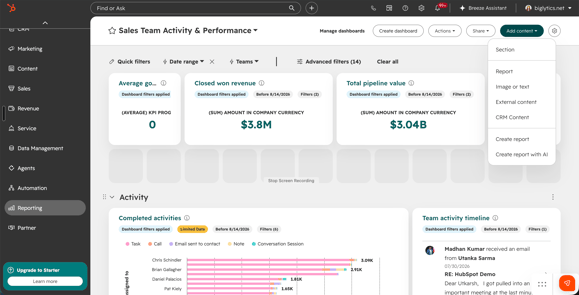
This is a private beta, so you’ll need to request access through the product updates page linked below.
3. Map Visualization for CRM Index Pages (Private Beta)
Map Visualization adds a geographic view directly to your CRM index pages. Instead of scanning a table of contacts, companies, or deals, you can switch to a map view and see where your records are located.
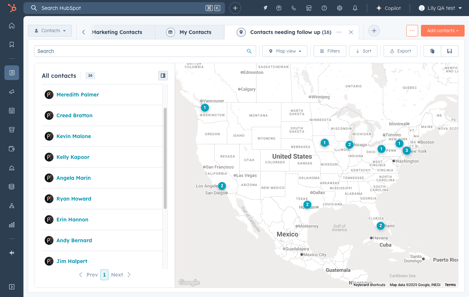
If your business has field sales reps, territory assignments, or regional account strategies, this is worth requesting. A sales manager can filter deals by revenue opportunity stage and immediately see which regions have the most open opportunities, without exporting data to a separate mapping tool.
Request access through the private beta link below. Once enabled, you can use the map view on CRM index pages for any object that has location data populated.
4. Email Quality Checks (Public Beta)
Email Quality Checks uses AI to review your marketing emails before you hit send. It scans for broken links, missing personalization tokens, accessibility issues, and content that could trigger spam filters. Think of it as a pre-send check that catches the mistakes your team is too close to the email to spot.
To start using it, open any marketing email in the editor and run the quality check before publishing. Review the flagged items, fix them before the email goes live, and use it as a final step in your send process. It takes very little time and can help protect deliverability and subscriber trust.
5. Ticket Re-Opening Management in Help Desk (Live)
Ticket Re-Opening Management lets you control what happens when a customer replies to a ticket that has already been closed. Before this update, those replies could create confusion, reopen old issues unexpectedly, or force service teams to sort out problems manually.
Service Hub users have been asking for this because it solves a practical workflow problem. You can define whether a reply to a closed ticket reopens the original, creates a new ticket, or does nothing. You can also set automated messages so customers understand what happens next.
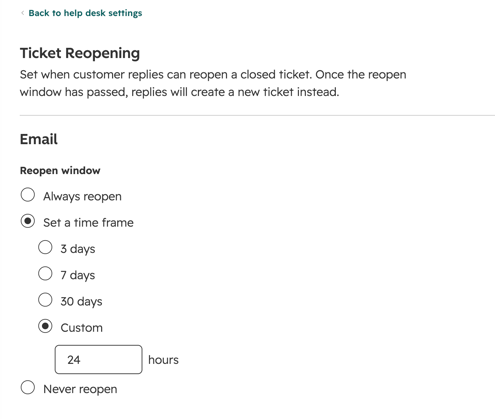
This one is live right now. Head to your Help Desk settings, configure the re-opening rules, and your service team can stop spending time manually sorting through old ticket replies. It is one of those small settings changes that can remove a surprising amount of friction from service operations.
6. Nurture Agent (Public Beta)
Nurture Agent uses Breeze AI to personalize automated marketing emails for individual recipients. It can adjust subject lines, preview text, calls to action, and body copy based on each contact’s CRM data and available context. The result is an email that feels more relevant to each person in the segment.
The practical catch is cost. Nurture Agent uses 10 credits per personalized email send. If you point it at your full database, those credits will disappear fast. We recommend keeping your segments targeted and intentional, and using it where personalization is most likely to influence conversion.
To get started, open a published automated email, click the option to personalize with Nurture Agent, choose your data sources, and preview the output for a small sample before committing to a broader send. That approach helps you protect credits while still getting value from the tool.
How to Browse More Unbound 2026 Updates
These six updates are the ones we think offer the fastest time to value, but HubSpot announced many more at Unbound 2026. For info on how the whole conference went, check out our general Unbound recap: Why Context Is the Real AI Advantage.
You can browse the rest through HubSpot’s product updates collection, or head directly to the Product Updates page in your portal to get started. Here's how:
- Click on your profile image/portal name in the top right corner of your portal
- Scroll down to Product Updates
- From the Product Updates pages, check out what's trending
- Or browse the All Updates tab with Filters to find specific Betas and learn about new live updates
If you have questions about any of these features, want help deciding which betas are worth joining, or need support implementing them, reach out to the Flawless Inbound team. Flawless Inbound helps clients evaluate, implement, and operationalize HubSpot updates so they fit the way each portal actually works.